Show Mobile Navigation

Ads

How to
Showing posts with label How to. Show all posts

Friday, 4 April 2014

how to redirect with www to without www in .net

Unknown - Friday, April 04, 2014
Here am going to show how to redirect your domain from with www to without www using web.config in .Net. You can use this to your Domain or Subdomain with www to without www.

Ex: Redirect from www.mobiappsweb.com to mobiappsweb.com ... Redirect from http://www.ypages.mobiappsweb.com to http://ypages.mobiappsweb.com

Redirect Main Domain from www.mobiappsweb.com to without mobiappsweb.com
<system.webServer>
  <rewrite>
    <rules>
      <rule name="Redirect www sub-domain to domain" stopProcessing="true">
        <match url="(.*)" />
        <conditions>
          <add input="{HTTP_HOST}" pattern="^www\.mobiappsweb\.com$" />
        </conditions>
        <action type="Redirect" url="http://mobiappsweb.com/{R:1}" redirectType="Permanent" />
      </rule>
    </rules>
  </rewrite>
</system.webServer>


Redirect Main Domain from www.ypages.mobiappsweb.com to without ypages.mobiappsweb.com:

<system.webServer>
  <rewrite>
    <rules>
      <rule name="Redirect www sub-domain to domain" stopProcessing="true">
        <match url="(.*)" />
        <conditions>
          <add input="{HTTP_HOST}" pattern="^www\.ypages.mobiappsweb\.com$" />
        </conditions>
        <action type="Redirect" url="http://ypages.mobiappsweb.com/{R:1}" redirectType="Permanent" />
      </rule>
    </rules>
  </rewrite>
</system.webServer>

Tuesday, 21 January 2014

Saving changes is not pemitted in SQL Server [Solved]

Unknown - Tuesday, January 21, 2014
Recently am faced the problem when am changing table columns in SQL Server Database. here is the solution.

Error: Saving changes is not pemitted. The changes you have made require the following tables to be dropped and re-created. You have either made changes to a table that can't be re-created or enabled the option Prevent saving changes that require the tables to be re-created.

 Saving changes is not pemitted in SQL Server [Solved]

Step 1: Open your SQL Server in Administrator mode

Step 2: Click on Tools --> click on Options


Step 4:     The below window will appear then Click on Tables and Database Designers in left panel --> Select check box (Right Click on Check box) Prevent saving changes that require table re-creation like below click on Ok .


 Hope it will solve your problem still if you are facing the same problem comment on this article.

Monday, 6 January 2014

important SEO HTML Tags

Unknown - Monday, January 06, 2014

Important SEO HTML Tags

     In Previous article am explained major Search Engines and Google Indexing Limits

Important SEO HTML Tags
1. Title Tag:
 Page Title Tag  should be within the <head> Tag. <title> tag should be end with </title> tag.
Most important your Page Title should not be more than 70 Characters.
Example:
     <head>
  <title>Latest Technology news, Download Free mobile apps | Download Android apps - mobiappsweb.com</title>
     </head>

2. Heading Tags(H Tags):
       Heading tags in page
H1 Tag : <h1>Most Important</h1>  and also only one H1 tag for each Page.
H2 Tag : <h2>Most Important</h2>  and two H2 tags per Page
H3 Tag: <h3>Third Most Important</h3> and you can insert number of H3 Tags

3. Bold and Strong Tags:
To highlight the text in content you can use <b> or <strong> both are same worth.
Example: visit <b>www.mobiappsweb.com</b> or visit free classified <strong>www.salenearn.com </strong>

4. Image:
Always use Keyword for image name, alt tag and title tag . Search Engines will show your images when hit those keywords.
 Example: <img src=”keyword.jpg” alt=”mobiappswb Logo”  title="mobiappsweb Logo"/>

5. Hyperlinks:
    When anchor using use Keywords as Anchor Text. Do not use Duplicate Anchor texts in same page
Example:
 <a href=”http://www.mobiappsweb.com/” title=”Download free mobile apps”>Keyword
in Anchor Text</a>

6. Hyperlink(No Followed):
Most important thing for SEO when inserting external link you don't want to catch by Google or Search Engines, So ad rel="nofollow" attribute. Then search engines ignoring those links when crawling.

Example:
<a href=”http://www.example.com/test.html” title=”keyword” rel=”nofollow”>Keyword in Anchor Text</a>

Here is the Check list Check it Once:


Search Engines and Google Indexing Limits

Unknown - Monday, January 06, 2014

Search Engines and Google Indexing Limits

Check my previous article How to Make URL Short using Google and Download Sachin Tendulkar Official App for your Android, iPhone and Windows Mobiles .

1. Page File Size: No more than 150 Kilo Bytes(Before Images, CSS and Other Attachments)

2. Amount Of Links: Links not more than 100 unique links per page

3. Title Tag: Not More than 70 Characters in Title Tag
Example:
   <title>Download Free mobile apps | Download Android apps - mobiappsweb.com</title>

4. Meta Description: Not more than 155 Characters
Example:
<meta name="description" content="mobiappsweb.com provides all technology news, Download free android  apps, IOS apps, Windows apps and Black Berry apps." />

Parameters in URL: Not more than 2 parameters (Query Strings).
Bad URL Example: www.mobiappsweb.com/default.aspx?search=apps&category=android apps&price=free

Good Example:
www.mobiappsweb.com/default.aspx?android apps
or
you can use only two parameters in URL like below
www.mobiappsweb.com/default.aspx?search=apps&category=android apps

Depth Of URL :  Not more than 4 directory
Good Example:
 www.mobiappsweb.com/apps/androidapps/free
if you need more make String concatination check the below URL
 www.mobiappsweb.com/apps-androidapps/free

Bad Example:
 ww.mobiappsweb.com/apps/androidapps/free/places/things/racing games

Source :  Moz
Here is the Screen Shot Search Engines and Google Indexing Limits:

How to Make URL Short

Unknown - Monday, January 06, 2014
   When we are posting article blogger automatically generate long tail URLs. So here am going to show how to make your URL as Short. In my Previous article about Download Sachin app for Mobile Devices and
Google, Yahoo, Amazon,YouTube Website how the design in starting .

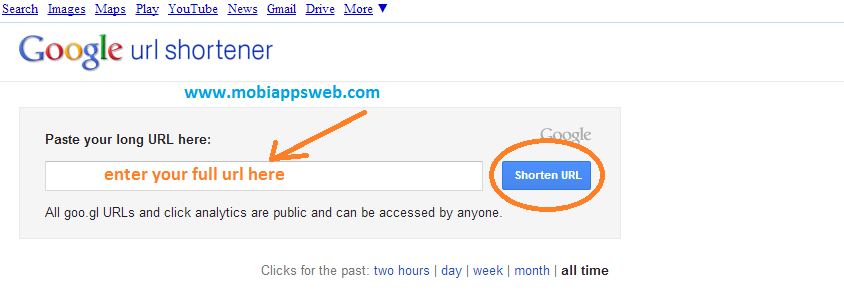
Step 1: Open http://goo.gl/


Step 2:  Enter your full length URL in the Box and Click on Shorten URL button

How to Make URL Short
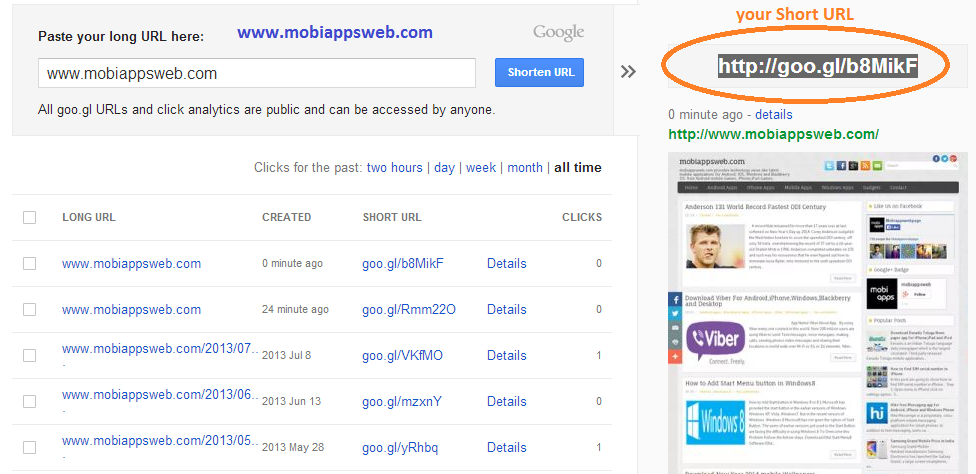
 Step 3: Now you can find Shorten URL Right side. Like below


How to Make URL Short -1

Wednesday, 1 January 2014

How to Add Start Menu button in Windows8

Unknown - Wednesday, January 01, 2014

How to Add Start button in Windows 8 or 8.1

Microsoft has provided the start button in the earlier versions of Windows Windows XP, Vista, Windows7. But in the recent version of Windows  Windows 8 Microsoft has not given the option of Start Button. The users of earlier versions got used to the Start Button are facing the difficulty in using Windows 8 To Overcome this Problem Follow the Below steps.
Windows_8_Logo


Download IObit Start Menu8 Software

IObit Start Menu8:

Step 1: Click on the this Link or Click on Below link to download the Software
 Download IObit Start Menu
Step 2: Check it in your Desktop or Downloads folder Install Software 
Follow the below screens 
Window8 Start Menu Button-1

Window8 Start Menu Button -2

Window8 Start Menu Button-3

Finally Step Now you can find Start Menu button in your PC or Laptop

Window8 Start Menu Button

How to Open my Start Screen:

Click On start Menu--> Click on Switch to Metro
Windows 8 Start Screen

How to change setting of IObit Start Menu Software:

Click On Start Menu -->Click on Settings 


Monday, 20 May 2013

How to Remove Card information from iTunes

Unknown - Monday, May 20, 2013

Steps to Remove Card information from iTunes

 Now a days Apple is not allowing to create an apple id without card information. Here i am going to explain how to remove card information from iTunes.
Step  1: Open iTunes from your computer and click iTunes Store in Top Right .
Step  2: Click on your apple id 


 Step 3:  Choose Account option


Step 4: iTunes will ask your password again Enter your apple id Password.


Step 5: Choose Payment information from your account  information and  Click on Edit 


Step 6:   Choose None in payment method and Click on Done.


I think this will help you,any queries or comments ?

Thursday, 9 May 2013

Facebook Comments plugin for Website and Blog

Unknown - Thursday, May 09, 2013
Comments are easily shared with friends or with people who like your Page on Facebook. If a user leaves the “Post to Facebook” box checked when she posts a comment, a story appears on her friends News Feed indicating that she’s made a comment on your website, which will also link back to your site. Friends and people who like the Page can then respond to the discussion by liking or replying to the comment directly in the News Feed on Facebook or in the Comments Box on your site. Threads stay synced across Facebook and on the Comments Box on your site regardless of where the comment was made.
Step 1: Copy and paste the below code after <body> tag
<div id="fb-root"></div>
<script>(function(d, s, id) {
  var js, fjs = d.getElementsByTagName(s)[0];
  if (d.getElementById(id)) return;
  js = d.createElement(s); js.id = id;
  js.src = "//connect.facebook.net/en_US/all.js#xfbml=1";
  fjs.parentNode.insertBefore(js, fjs);
}(document, 'script', 'facebook-jssdk'));</script>

Step 2: Change YOUR WEB PAGE URL and Place the code for your comments plugin wherever you want the comments to appear on your page.
<div class="fb-comments" data-href="YOUR WEB PAGE URL" data-width="470" data-num-posts="10"></div>

Step 3: Finally whole HTML code like the below.
<!DOCTYPE html PUBLIC "-//W3C//DTD XHTML 1.0 Transitional//EN" "http://www.w3.org/TR/xhtml1/DTD/xhtml1-transitional.dtd">
<html xmlns="http://www.w3.org/1999/xhtml">
<head>
    <title>facebook comments plugin Demo | mobiappsweb.com</title>
  </head>
<body>
<div id="fb-root"></div>
<script>(function(d, s, id) {
  var js, fjs = d.getElementsByTagName(s)[0];
  if (d.getElementById(id)) return;
  js = d.createElement(s); js.id = id;
  js.src = "//connect.facebook.net/en_US/all.js#xfbml=1";
  fjs.parentNode.insertBefore(js, fjs);
}(document, 'script', 'facebook-jssdk'));</script>
<br />
<strong>Facebook Comment Plugin Demo</strong><br />
<div class="fb-comments" data-href="YOUR WEBPAGE URL" data-width="470" data-num-posts="10"></div>
</body>
</html>

Facebook Share Button For Websites

Unknown - Thursday, May 09, 2013
The Facebook Send Button helps you to send private messages to specific friends or specific Groups.This will helps you to send Link, some content and images in meassage.
Step 1: Copy and paste the below code after <body> tag
<div id="fb-root"></div>
<script>(function(d, s, id) {
  var js, fjs = d.getElementsByTagName(s)[0];
  if (d.getElementById(id)) return;
  js = d.createElement(s); js.id = id;
  js.src = "//connect.facebook.net/en_US/all.js#xfbml=1";
  fjs.parentNode.insertBefore(js, fjs);
}(document, 'script', 'facebook-jssdk'));</script>

Step 2: Place the code for your Send button wherever you want the send button to appear on your page.
<div class="fb-send" data-href="http://www.mobiappsweb.com"></div>

Step 3: Finally whole HTML code like the below.
<!DOCTYPE html PUBLIC "-//W3C//DTD XHTML 1.0 Transitional//EN" "http://www.w3.org/TR/xhtml1/DTD/xhtml1-transitional.dtd">
<html xmlns="http://www.w3.org/1999/xhtml">
<head>
    <title>Facebook share button Demo | mobiappsweb.com</title>
</head>
<body>
<div id="fb-root"></div>
<script>(function(d, s, id) {
  var js, fjs = d.getElementsByTagName(s)[0];
  if (d.getElementById(id)) return;
  js = d.createElement(s); js.id = id;
  js.src = "//connect.facebook.net/en_US/all.js#xfbml=1";
  fjs.parentNode.insertBefore(js, fjs);
}(document, 'script', 'facebook-jssdk'));</script>
<table align="center" width="750">
<tr>
<td align="center" valign="middle">
<strong>Facebook Share Button Demo Click on Send button you can see the demo</strong><br />
  <div class="fb-send" data-href="http://www.mobiappsweb.com"></div>
</td>
</tr>
</table>
</body>
</html>

Wednesday, 8 May 2013

Facebook Like Button for Websites

Unknown - Wednesday, May 08, 2013

Facebook Like Button For Websites

The Like button lets a user share your content with friends on Facebook. When the user clicks the Like button on your site, a story appears in the user's friends' News Feed with a link back to your website.
To integrate facebook like button to your website,first you have to create a facebook page for your website.
 

Follow the below steps to Generate Code and integrate into your website Step 1: Open this URL, https://developers.facebook.com/docs/reference/plugins/like/
Step 2: Configure and Generate Code
Type your Facebook page URL like below Ex: https://www.facebook.com/mobiappswebpage
If you want Send button keep the check box right otherwise remove the check box selection
Adjust the Width, default width of Like button 450.like below
facebook like button for websites

After completion of all these steps click on Get Code. Pop up will show like below.

facebook like button for websites

Step 3:  Copy and paste the first box code after the opening <body> tag in webpage.

<div id="fb-root"></div>
<script>(function(d, s, id) {
  var js, fjs = d.getElementsByTagName(s)[0];
  if (d.getElementById(id)) return;
  js = d.createElement(s); js.id = id;
  js.src = "//connect.facebook.net/en_US/all.js#xfbml=1";
  fjs.parentNode.insertBefore(js, fjs);
}(document, 'script', 'facebook-jssdk'));</script>

Step 4:  Copy and paste the second box code your plugin wherever you want the plugin to appear on your web page.
<div class="fb-like-box" data-href="http://www.facebook.com/mobiappswebpage" data-width="240" data-show-faces="true" data-stream="false" data-header="false"></div>
Finally, Whole HTML code look like this:
<!DOCTYPE html PUBLIC "-//W3C//DTD XHTML 1.0 Transitional//EN" "http://www.w3.org/TR/xhtml1/DTD/xhtml1-transitional.dtd">
<html xmlns="http://www.w3.org/1999/xhtml">
<head>
    <title>facebook like button | mobiappsweb.com</title>
</head>
<body>
<div id="fb-root"></div>
<script>(function(d, s, id) {
  var js, fjs = d.getElementsByTagName(s)[0];
  if (d.getElementById(id)) return;
  js = d.createElement(s); js.id = id;
  js.src = "//connect.facebook.net/en_US/all.js#xfbml=1";
  fjs.parentNode.insertBefore(js, fjs);
}(document, 'script', 'facebook-jssdk'));</script>
  <div class="fb-like-box" data-href="http://www.facebook.com/mobiappswebpage" data-width="240" data-show-faces=
"true" data-stream="false" data-header="false"></div>
</body>
</html>


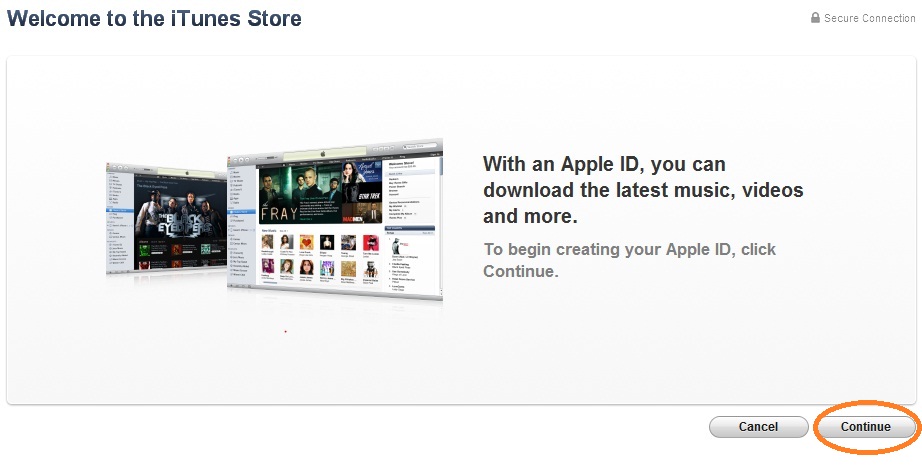
How To Create Apple id in iTunes

Unknown - Wednesday, May 08, 2013
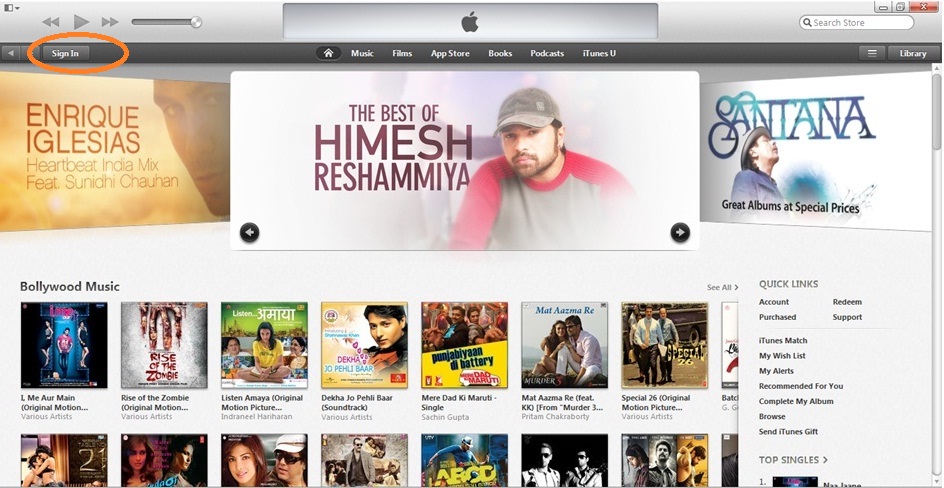
create apple id in iTunes Step1: Open iTunes and Click on Sign In in Top Left Corner


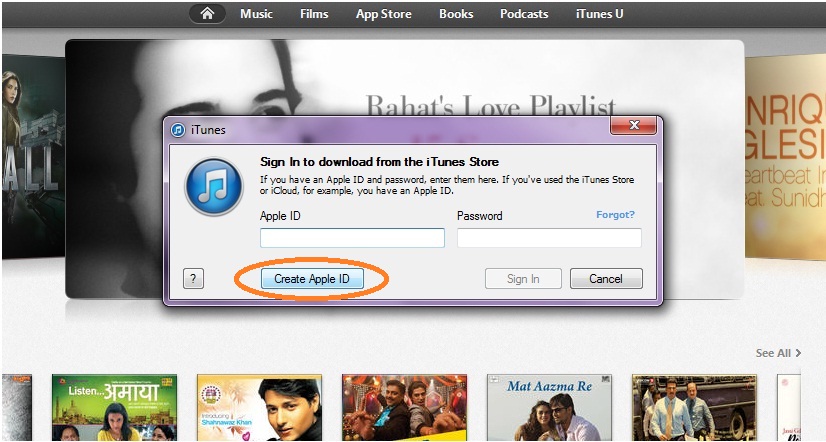
Step 2: Click on Create Apple ID in popup box

create apple id in iTunes store

Step 3: Click on Continue button

create apple id in iTunes

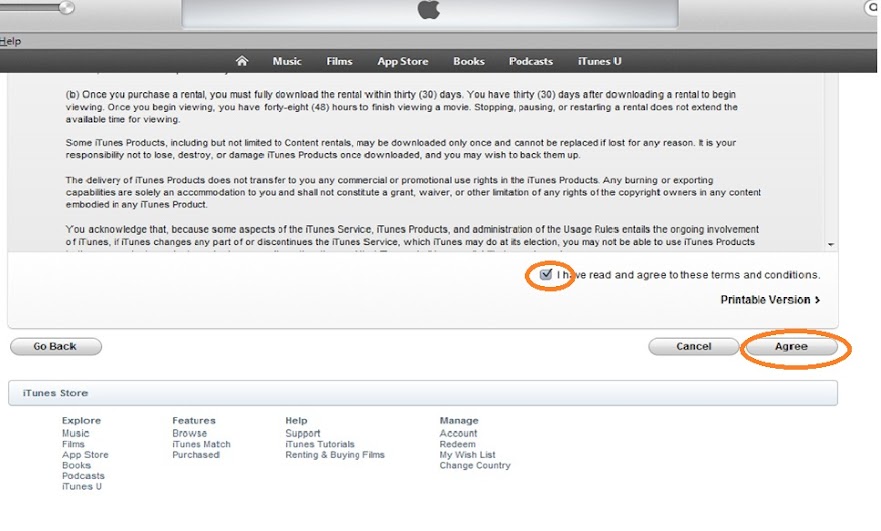
Step 4: Accept the terms and conditions and Click on Agree button


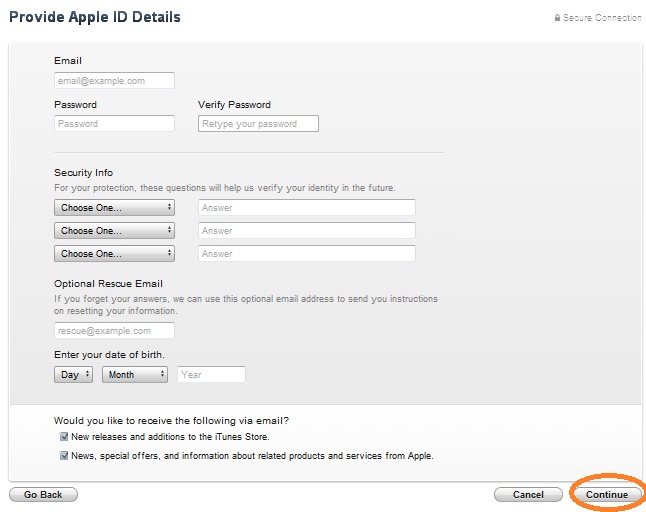
Step 5: Fill all your required information and Click on Contunue


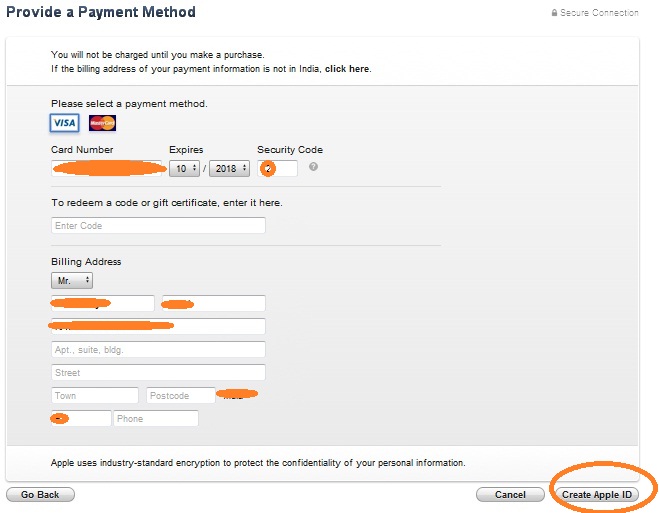
Step 6: Fill your payment details and billing address.
Note: Apple will not be charge any thing untill you purchase any app or game from app store.


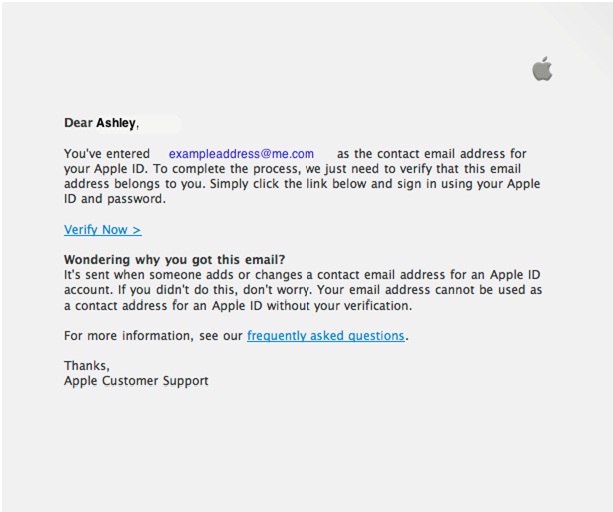
Step 7: You'll then see a "Verify your Account" screen. Click Done, and then check your email for a verification email from iTunes Store.

Step 8; Open the email, and click the link enclosed in the email to activate your account.


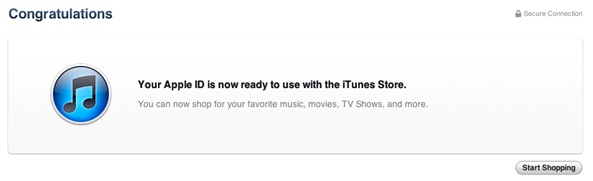
Step 9: Once you click on the Verify link, the Apple ID website should ask you to sign in with your account name and password.

create apple id in iTunes

Friday, 3 May 2013

How to know saved password in Browser

Unknown - Friday, May 03, 2013
In this post am going to show how to see saved password in browsers.

Firstly am going to show in major browsers.

Chrome Browser:


Step  1: Open your Browser Enter your username and password
Step  2: Right Click on password field click on Inspect Element
 

Step  3: Now change the <input type='password' > to <input type='text'>


Step  4: Now you can see the password in alphabets


Mozilla Firefox


Step  1: Open your Browser Enter your username and password

Step  2: Right Click on password field click on Inspect Element

Step  3: Now change the <input type='password' > to <input type='text'>


Step  4: Now you can see the password in alphabets


Thursday, 2 May 2013

How to find SIM serial number in iPhone

Unknown - Thursday, May 02, 2013
In this post am going to show how to find SIM serial number in iPhone . 

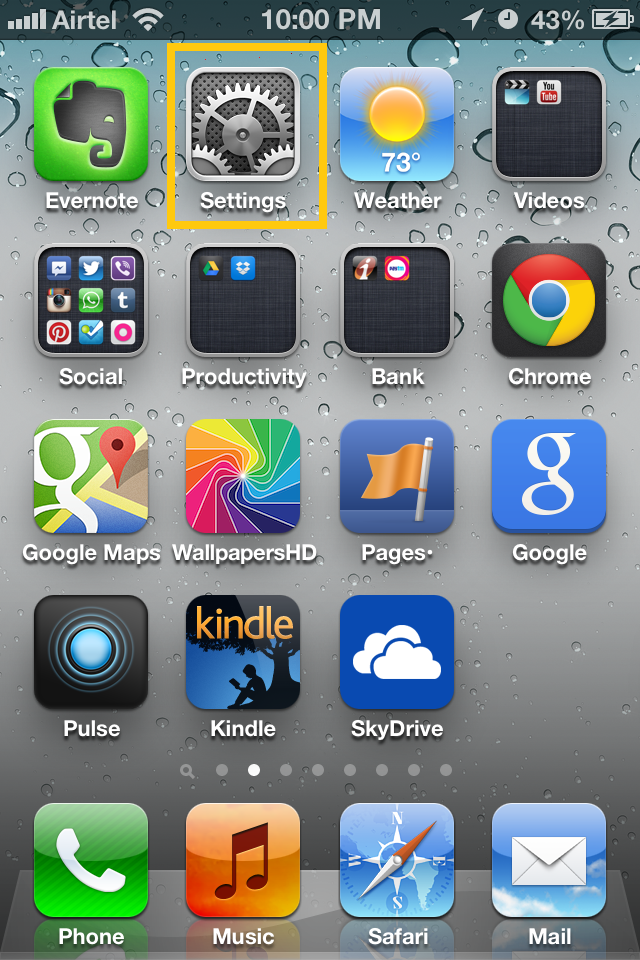
Step 1: Open menu in iPhone click on settings option.


 Step 2:  Click on General


Step 3:  Click On About


Step 4: Now you can see ICCID this is the SIM number . Here you can also find IMEI and apple serial number.


Previous
Editor's Choice